
To automate the process of importing and for a better experience we have natively included support for the One Click Demo Import Plugin
Installing the Plugin
From your WordPress dashboard
Visit Plugins → Add New and
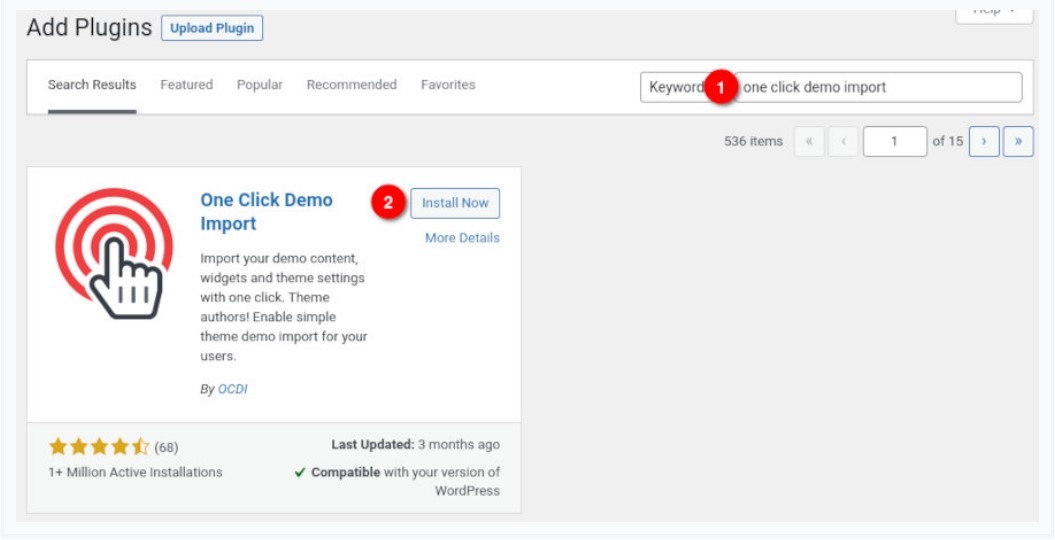
- Search for One Click Demo Import and install the plugin.
- Install and Activate One Click Demo Import from your Plugins page.
Since modern WordPress themes are getting more robust and complex, it’s necessary to release more power from the server. You can achieve this by editing the php.ini file or asking your hosting provider to do this for you.
We recommend the following settings:

max_execution_time = 300;
memory_limit = 128M;
upload_max_filesize = 128M;
post_max_size = 256M;
Installing Sample Content
Once the plugin is activated you will find the actual import page in Appearance → Import Demo Data.
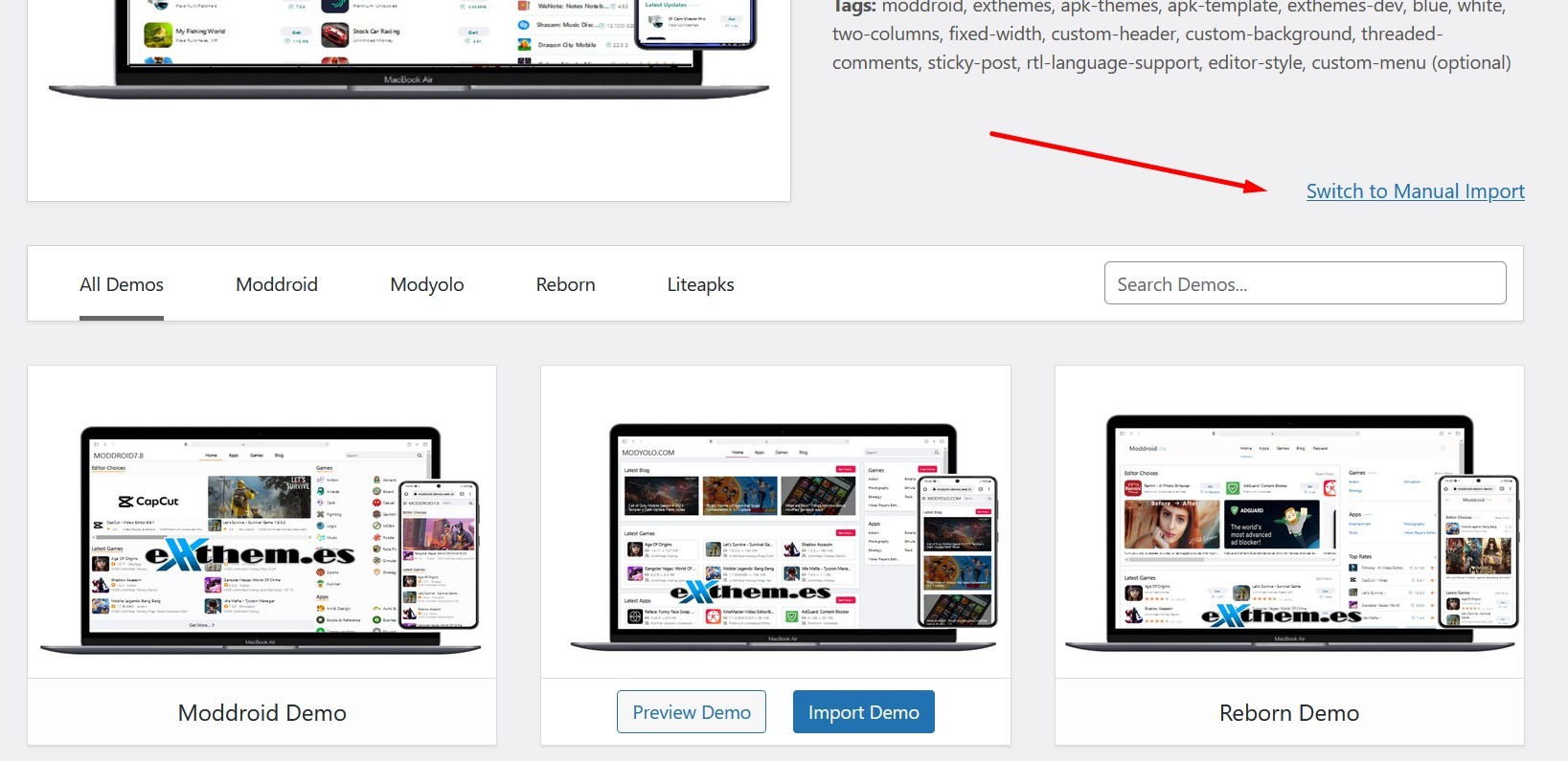
Click on Switch to Manual Import you can see on image.
after you click you can see like this.
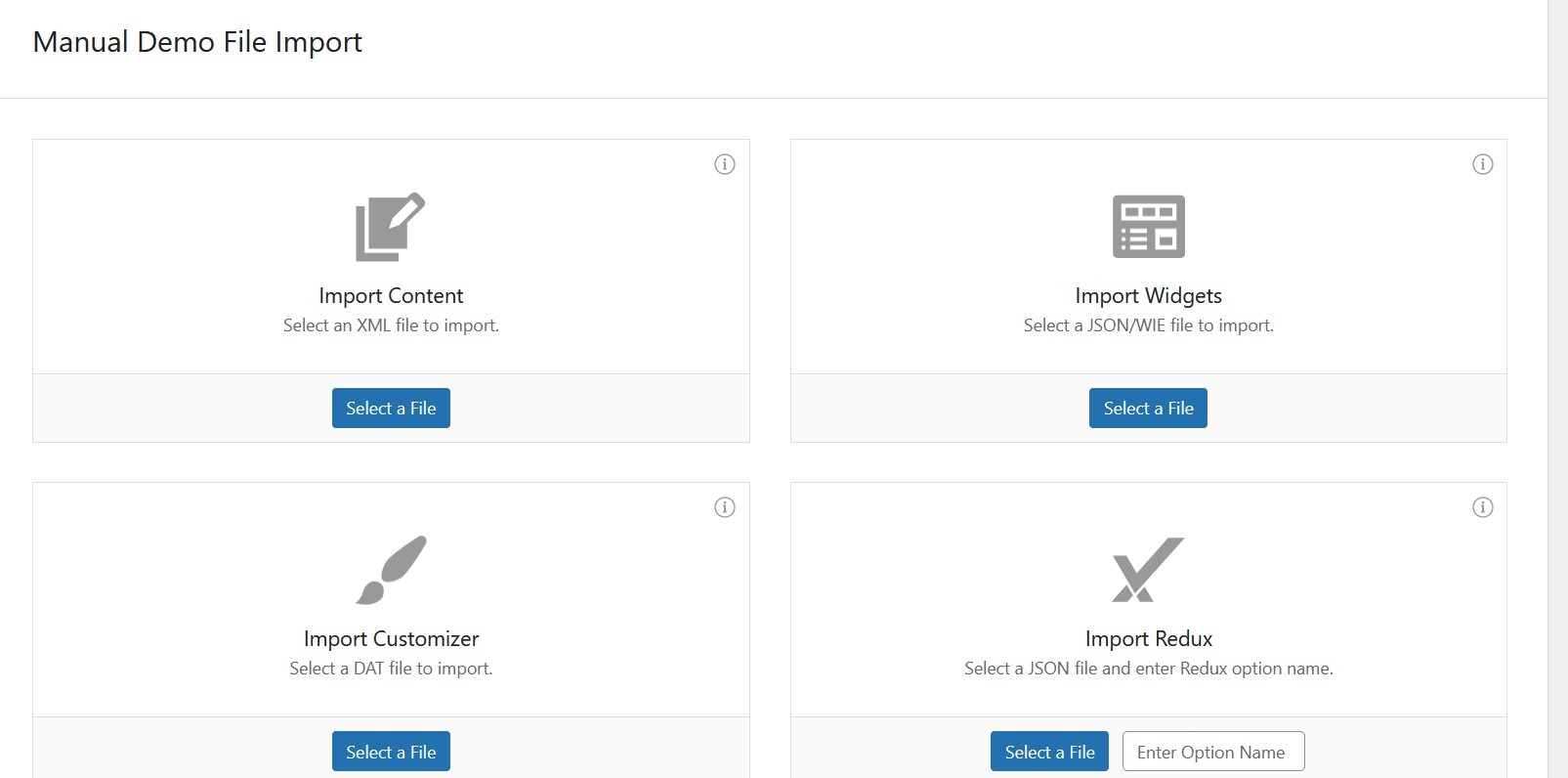
- Import Content – select file content.xml on folder demo (You will need a File and the Extension of the File is .xml)
- Import Widgets – select file widget.wie on folder demo (You will need a File and the Extension of the File is .wie)
- Import Customizer – select file customizer.dat on folder demo (You will need a File and the Extension of the File is .dat)
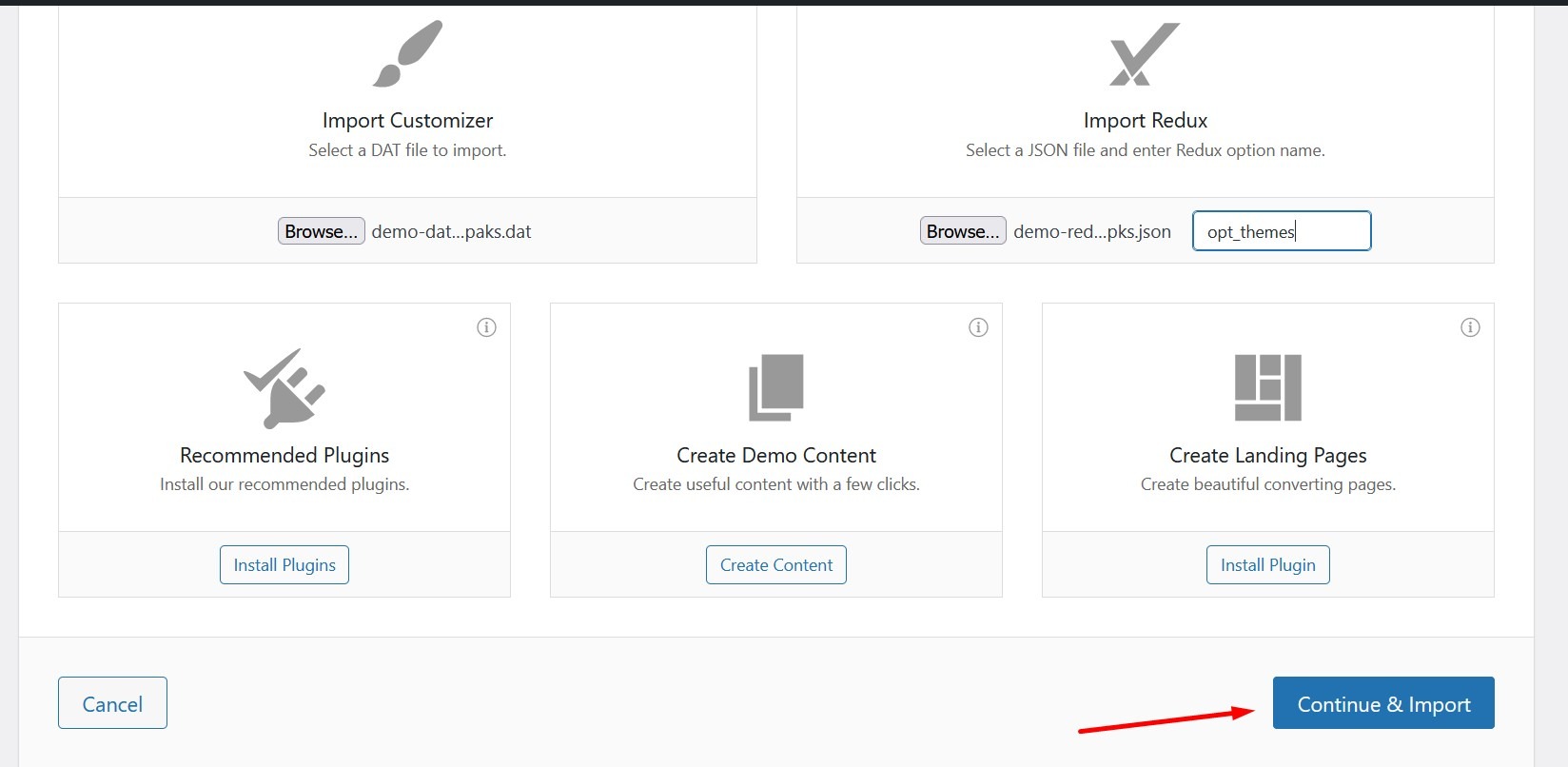
- Import Redux – select file redux.json on folder demo (You will need a File and the Extension of the File is .json) and put opt_themes
after you input all file, next click continue & import and wait finish installation.

If you require any further assistance please Contact Here with the Site URL, One Temporary Admin ID and Password of your WordPress Dashboard.
